> ## Documentation Index
> Fetch the complete documentation index at: https://docs.cadmium.app/llms.txt
> Use this file to discover all available pages before exploring further.
# The Color Menu
> Color wheel and palette management
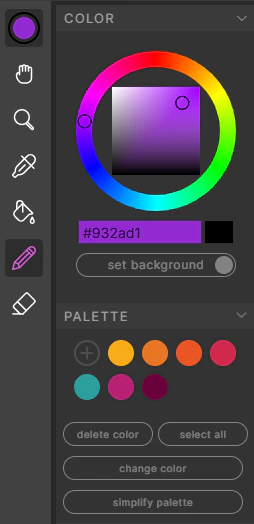
The Color Menu is a central feature of Cadmium. It contains a **color wheel** where you can choose, adjust, and input color values, and a **Palette** where Cadmium keeps track of all colors in your file.
 ## The Color Wheel
The Color Wheel can be interacted with to choose new colors, and there's an input box for copy-pasting hex codes.
* The **large color block** below the wheel displays the currently selected color.
* The **small rectangle** on the right is the secondary color — click it or press **X** to swap.
* Below this, you can set the canvas background color to the currently selected color.
## The Color Palette
Any time a new color is introduced to your frames (via a reference image, or by selecting from the color wheel), a swatch appears in the Palette.
* **Click** a swatch to select it
* **Drag** to reorder swatches
* **Double-click** to change the currently selected color to this swatch
* **Change Color** — select the swatch you want to change, pick a new color, and press the "Change Color" button to globally replace it
* **Simplify Palette** — finds near-neighboring colors and merges them into one
* **Shift-click** to select multiple swatches, or use the **Select All** button
* **Delete Color** removes any selected swatches
## The Color Wheel
The Color Wheel can be interacted with to choose new colors, and there's an input box for copy-pasting hex codes.
* The **large color block** below the wheel displays the currently selected color.
* The **small rectangle** on the right is the secondary color — click it or press **X** to swap.
* Below this, you can set the canvas background color to the currently selected color.
## The Color Palette
Any time a new color is introduced to your frames (via a reference image, or by selecting from the color wheel), a swatch appears in the Palette.
* **Click** a swatch to select it
* **Drag** to reorder swatches
* **Double-click** to change the currently selected color to this swatch
* **Change Color** — select the swatch you want to change, pick a new color, and press the "Change Color" button to globally replace it
* **Simplify Palette** — finds near-neighboring colors and merges them into one
* **Shift-click** to select multiple swatches, or use the **Select All** button
* **Delete Color** removes any selected swatches