> ## Documentation Index
> Fetch the complete documentation index at: https://docs.cadmium.app/llms.txt
> Use this file to discover all available pages before exploring further.
# Drawing Tools
> Pen, eraser, fill, and eyedropper tools
## Pen Tool
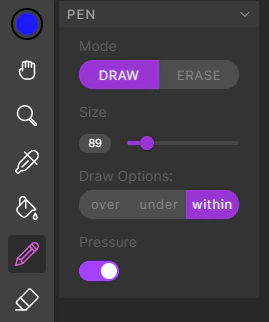 * Toggle between draw and erase mode with **Alt/Option**.
* Adjust pen size with the slider, or while the pen is selected, hold **Control** and right-click drag left/right.
* Pressure sensitivity can be toggled on and off from the pen panel.
### Draw Options
There are three drawing modes:
| Mode | Behavior |
| ---------- | ----------------------------------------------------------- |
| **Over** | Normal drawing — new strokes are drawn over existing pixels |
| **Under** | Draws behind any existing pixels |
| **Within** | Confined to only existing pixels |
## Eraser Tool
* Toggle between draw and erase mode with **Alt/Option**.
* Adjust pen size with the slider, or while the pen is selected, hold **Control** and right-click drag left/right.
* Pressure sensitivity can be toggled on and off from the pen panel.
### Draw Options
There are three drawing modes:
| Mode | Behavior |
| ---------- | ----------------------------------------------------------- |
| **Over** | Normal drawing — new strokes are drawn over existing pixels |
| **Under** | Draws behind any existing pixels |
| **Within** | Confined to only existing pixels |
## Eraser Tool
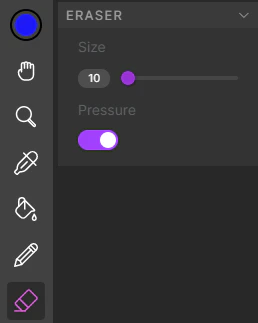 A dedicated eraser tool with its own size setting, independent of the pen tool.
### Common Uses for Pen and Eraser
After analyzing your frames, you may find gaps in your linework. In addition to adjusting the [Analysis Settings](/analyzing-frames#analysis-settings-panel), you can use the pen and eraser to make manual corrections.
You can also use the pen on the Color Layer for small tweaks. Note that drawing on the color layer does not currently update the segmentation mask, so manual changes may not persist through re-colorization.
## Fill Tool
A dedicated eraser tool with its own size setting, independent of the pen tool.
### Common Uses for Pen and Eraser
After analyzing your frames, you may find gaps in your linework. In addition to adjusting the [Analysis Settings](/analyzing-frames#analysis-settings-panel), you can use the pen and eraser to make manual corrections.
You can also use the pen on the Color Layer for small tweaks. Note that drawing on the color layer does not currently update the segmentation mask, so manual changes may not persist through re-colorization.
## Fill Tool
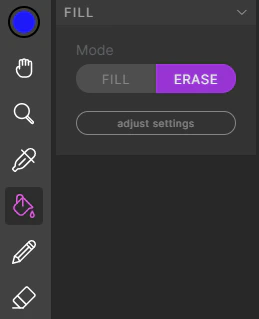 Regardless of which layer is selected, the fill tool always fills on the **Color Layer**. It corresponds to the segment map of each image, and changes made with this tool propagate to other frames when used as a reference.
## Eyedropper
Regardless of which layer is selected, the fill tool always fills on the **Color Layer**. It corresponds to the segment map of each image, and changes made with this tool propagate to other frames when used as a reference.
## Eyedropper
 The eyedropper samples any color on the canvas. Hold **Shift** as a shortcut to eyedrop while using another tool.