> ## Documentation Index
> Fetch the complete documentation index at: https://docs.cadmium.app/llms.txt
> Use this file to discover all available pages before exploring further.
# The Line Colorization Menu
> Automatic line coloring and enhanced line features
The Line Colorization is an experimental feature that enables automatic coloring of line work, similar to programs like PaintMan. If your linework uses different colors to indicate how lines should be recolored, this feature is for you.
## Enabling Line Colorization
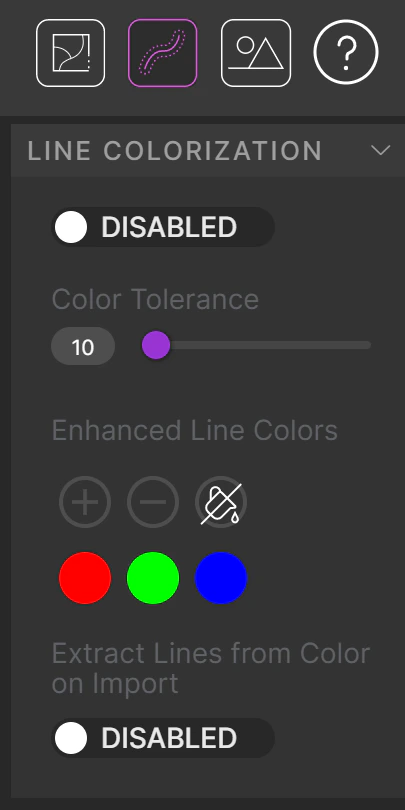 Access the line colorization feature by pressing the button in the upper-right corner. Alternatively, click the **star icon** next to the Outlines Layer name.
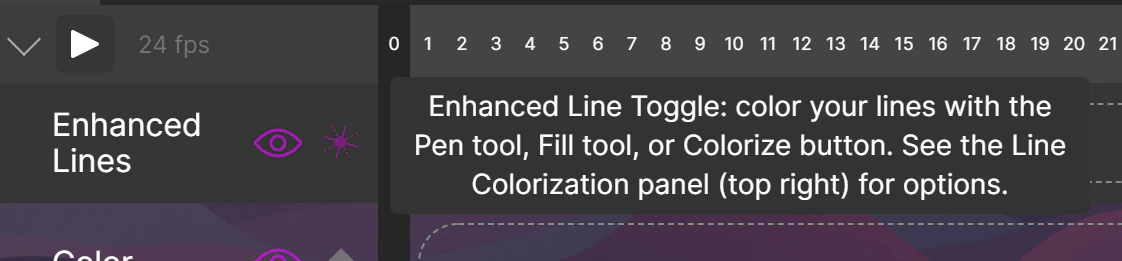 When the feature is enabled, a third set of frames appears above your line frames on the timeline — the **Enhanced Line (EL)** layer.
 ## Working with the Enhanced Line Layer
When in EL mode, any actions on the line layer apply to the Enhanced Line layer:
* Use the **pen tool** to manually color lines (note: the pen only draws "within" on the EL layer).
* Use the **fill tool** on the EL layer to fill the line work surrounding a segment with the selected color.
### Enhanced Line Color Palette
## Working with the Enhanced Line Layer
When in EL mode, any actions on the line layer apply to the Enhanced Line layer:
* Use the **pen tool** to manually color lines (note: the pen only draws "within" on the EL layer).
* Use the **fill tool** on the EL layer to fill the line work surrounding a segment with the selected color.
### Enhanced Line Color Palette
 You can draw over any existing line that matches a color in your Enhanced Line Color palette. By default, Red, Green, and Blue are selected. You can add other colors or temporarily disable any by pressing the palette icons.
For example: if your line work is red and black and only red is in your EL palette, you can only edit the red lines. Add black to edit those as well.
Turn off the normal line layer visibility to isolate what is being edited on the EL layer vs. the normal line layer.
## Extracting Lines from Color Frame on Import
If the last toggle button in the menu is enabled, you can extract EL line colors from a color image:
1. Import your line images as normal.
2. Enable Line Colorization, and enable **Extract Lines From Color On Import**.
3. Import a color image that contains colored line work as you want the final image to look.
Your colored line work will appear on the EL layer, separated from normal line work, with colors perfectly separated. Cadmium will automatically detect your EL colors — no need to manually add them to the palette.
## Colorizing Line Work
You can automatically colorize line work the same way you colorize fills. If the EL layer is activated, pressing **Colorize** will also process the line work.
This can take longer depending on image complexity. Also note that if you color line work around a segment and that line work is continuous and the same color, it will all be filled. The initial line work needs a color change for Cadmium to know where to stop.
You can draw over any existing line that matches a color in your Enhanced Line Color palette. By default, Red, Green, and Blue are selected. You can add other colors or temporarily disable any by pressing the palette icons.
For example: if your line work is red and black and only red is in your EL palette, you can only edit the red lines. Add black to edit those as well.
Turn off the normal line layer visibility to isolate what is being edited on the EL layer vs. the normal line layer.
## Extracting Lines from Color Frame on Import
If the last toggle button in the menu is enabled, you can extract EL line colors from a color image:
1. Import your line images as normal.
2. Enable Line Colorization, and enable **Extract Lines From Color On Import**.
3. Import a color image that contains colored line work as you want the final image to look.
Your colored line work will appear on the EL layer, separated from normal line work, with colors perfectly separated. Cadmium will automatically detect your EL colors — no need to manually add them to the palette.
## Colorizing Line Work
You can automatically colorize line work the same way you colorize fills. If the EL layer is activated, pressing **Colorize** will also process the line work.
This can take longer depending on image complexity. Also note that if you color line work around a segment and that line work is continuous and the same color, it will all be filled. The initial line work needs a color change for Cadmium to know where to stop.