> ## Documentation Index
> Fetch the complete documentation index at: https://docs.cadmium.app/llms.txt
> Use this file to discover all available pages before exploring further.
# User Interface
> The Canvas, Timeline, Layers, and Key Frames
## The Canvas
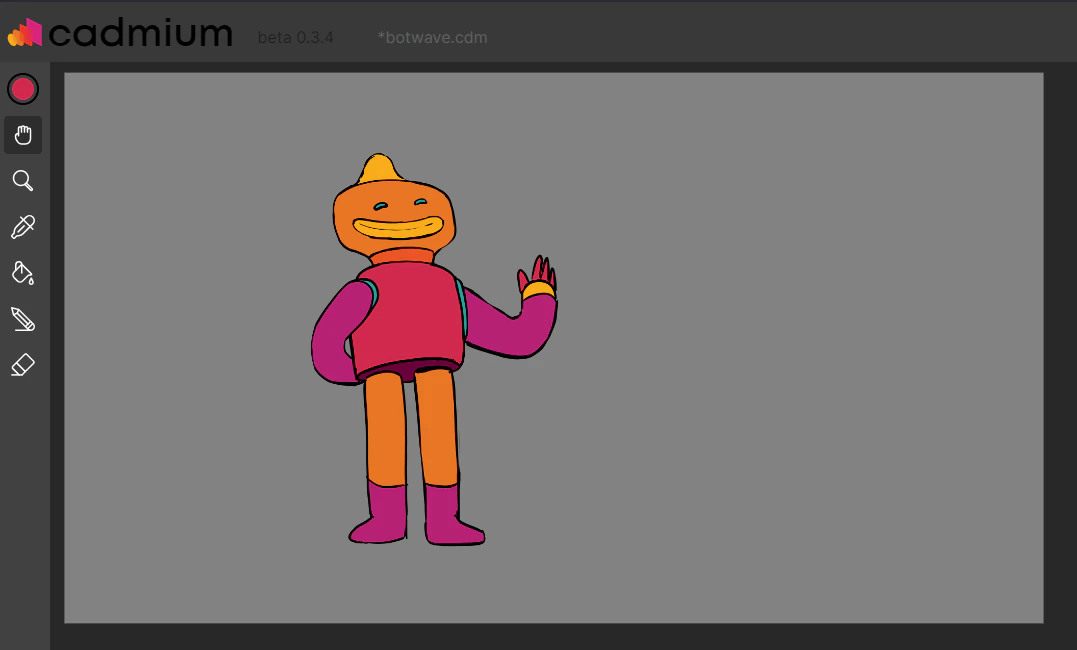 As soon as you have imported artwork into Cadmium, the canvas will become visible, displaying your artwork. There are a few tools associated with how you view the canvas in the sidebar on the left side of the application.
### Hand Tool
Like other drawing programs, the hand tool allows you to move around your canvas by left-clicking and dragging. The shortcut is holding **Space**.
### Zoom Tool
The Zoom tool zooms in and out (toggled by **Alt/Option**). You can also use the middle mouse scroll, or right-click and drag to zoom in and out of the canvas.
### Eyedropper
The eyedropper tool allows you to sample any pixel color on the canvas. If a semi-transparent pixel is sampled, the eyedropper will return the full color value of the pixel.
By default, the background color of the canvas is white, but you can change it in the [Color Menu](/color-menu).
***
## The Timeline
As soon as you have imported artwork into Cadmium, the canvas will become visible, displaying your artwork. There are a few tools associated with how you view the canvas in the sidebar on the left side of the application.
### Hand Tool
Like other drawing programs, the hand tool allows you to move around your canvas by left-clicking and dragging. The shortcut is holding **Space**.
### Zoom Tool
The Zoom tool zooms in and out (toggled by **Alt/Option**). You can also use the middle mouse scroll, or right-click and drag to zoom in and out of the canvas.
### Eyedropper
The eyedropper tool allows you to sample any pixel color on the canvas. If a semi-transparent pixel is sampled, the eyedropper will return the full color value of the pixel.
By default, the background color of the canvas is white, but you can change it in the [Color Menu](/color-menu).
***
## The Timeline
 The timeline displays graphical representations of your animation frames and allows you to select, remove, and navigate between frames.
* Show or collapse the timeline by clicking the arrow in the top-left corner, or pressing **T**.
* Once images are imported, the timeline displays the image size next to the collapsible arrow.
* Press **Enter** or the play button to play through your sequence at 24 fps.
* Use the **Left/Right arrow** buttons to go to the previous or next frame.
* Click and drag in the numbered area above the frames to scrub through the timeline.
### Layers
The timeline has two layers: one for **color** and one for **line work**. When you start a new file, each layer has a drop zone where you can drag and drop images or folders.
### Layer Visibility
Toggle layer visibility by clicking the **eyeball icon** next to each layer. Visibility affects how your images are exported — see the [Exporting](/exporting) section for details.
### Selecting Layers
The timeline displays graphical representations of your animation frames and allows you to select, remove, and navigate between frames.
* Show or collapse the timeline by clicking the arrow in the top-left corner, or pressing **T**.
* Once images are imported, the timeline displays the image size next to the collapsible arrow.
* Press **Enter** or the play button to play through your sequence at 24 fps.
* Use the **Left/Right arrow** buttons to go to the previous or next frame.
* Click and drag in the numbered area above the frames to scrub through the timeline.
### Layers
The timeline has two layers: one for **color** and one for **line work**. When you start a new file, each layer has a drop zone where you can drag and drop images or folders.
### Layer Visibility
Toggle layer visibility by clicking the **eyeball icon** next to each layer. Visibility affects how your images are exported — see the [Exporting](/exporting) section for details.
### Selecting Layers
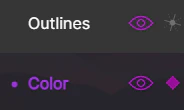 Keep track of which layer is currently selected, as it affects where drawing actions occur. Click on the layer name to select it. **Shift + Up/Down arrows** toggles the selection.
### Outlines Layer
This is where you import your line images. The star icon next to the layer name enables an experimental [line colorization](/line-colorization-menu) feature.
### Color Layer
Below the Outlines Layer is the color layer — where you import or create reference frames, and where colorized images populate. The **diamond icon** next to the visibility icon indicates a reference frame is selected. A half-filled diamond means both a reference and non-reference frame are selected. Click the diamond to toggle frames as reference images.
For more information about working with frames, see the [Importing Frames](/importing-frames) section.
***
## Key Frames
Keep track of which layer is currently selected, as it affects where drawing actions occur. Click on the layer name to select it. **Shift + Up/Down arrows** toggles the selection.
### Outlines Layer
This is where you import your line images. The star icon next to the layer name enables an experimental [line colorization](/line-colorization-menu) feature.
### Color Layer
Below the Outlines Layer is the color layer — where you import or create reference frames, and where colorized images populate. The **diamond icon** next to the visibility icon indicates a reference frame is selected. A half-filled diamond means both a reference and non-reference frame are selected. Click the diamond to toggle frames as reference images.
For more information about working with frames, see the [Importing Frames](/importing-frames) section.
***
## Key Frames
 The gray boxes on the timeline represent your sequence's unique drawings and how many frames they are held for. If you import duplicates of an image, Cadmium will recognize this and group them together. The purple dots represent reference frames used to determine how to color the selected frame. Learn more about [Reference Frames](/reference-frames).