Automatic line coloring and enhanced line features
The Line Colorization is an experimental feature that enables automatic coloring of line work, similar to programs like PaintMan. If your linework uses different colors to indicate how lines should be recolored, this feature is for you.
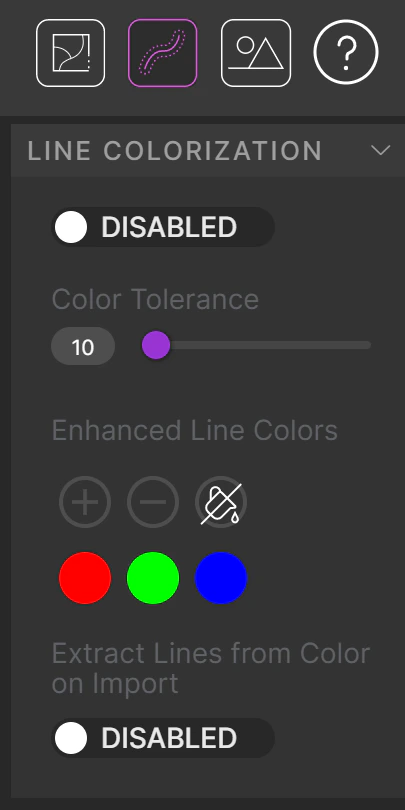
Access the line colorization feature by pressing the button in the upper-right corner. Alternatively, click the star icon next to the Outlines Layer name.
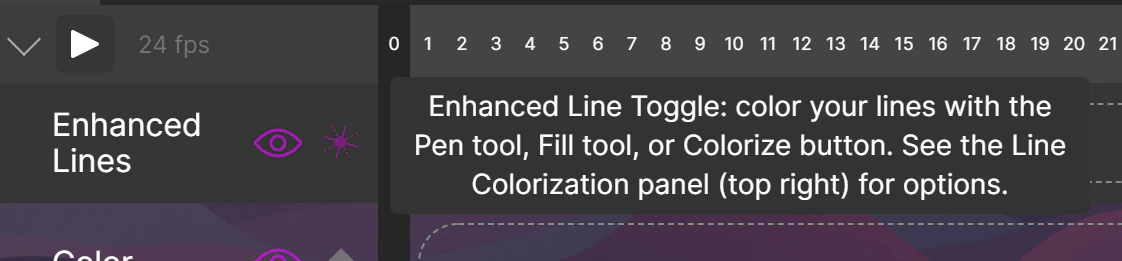
When the feature is enabled, a third set of frames appears above your line frames on the timeline — the Enhanced Line (EL) layer.
You can draw over any existing line that matches a color in your Enhanced Line Color palette. By default, Red, Green, and Blue are selected. You can add other colors or temporarily disable any by pressing the palette icons.For example: if your line work is red and black and only red is in your EL palette, you can only edit the red lines. Add black to edit those as well.
Turn off the normal line layer visibility to isolate what is being edited on the EL layer vs. the normal line layer.
If the last toggle button in the menu is enabled, you can extract EL line colors from a color image:
Import your line images as normal.
Enable Line Colorization, and enable Extract Lines From Color On Import.
Import a color image that contains colored line work as you want the final image to look.
Your colored line work will appear on the EL layer, separated from normal line work, with colors perfectly separated. Cadmium will automatically detect your EL colors — no need to manually add them to the palette.
You can automatically colorize line work the same way you colorize fills. If the EL layer is activated, pressing Colorize will also process the line work.
This can take longer depending on image complexity. Also note that if you color line work around a segment and that line work is continuous and the same color, it will all be filled. The initial line work needs a color change for Cadmium to know where to stop.
{"docsConfig":{"theme":"mint","$schema":"https://mintlify.com/docs.json","name":"Cadmium Documentation","colors":{"primary":"#9834D3","light":"#B44FE8","dark":"#7C3AED"},"logo":{"light":"https://mintcdn.com/cadmium/Fvk6ySr7tA0LNqlY/logo/light.svg?fit=max\u0026auto=format\u0026n=Fvk6ySr7tA0LNqlY\u0026q=85\u0026s=d3b40683441d4399739ef509086554f8","dark":"https://mintcdn.com/cadmium/Fvk6ySr7tA0LNqlY/logo/dark.svg?fit=max\u0026auto=format\u0026n=Fvk6ySr7tA0LNqlY\u0026q=85\u0026s=3bd9d92a1462f9bf45fff15086fe6cf5"},"favicon":"/logo/favicon.svg","navbar":{"links":[{"href":"mailto:hello@cadmium.app","label":"Support"}],"primary":{"type":"button","label":"Get Started","href":"https://cadmium.app"}},"footer":{"socials":{"discord":"https://discord.gg/HGcdVVz2","instagram":"https://www.instagram.com/cadmium_animation","x":"https://x.com/cadmiumai"}},"contextual":{"options":["copy","view","chatgpt","claude","perplexity","mcp","cursor","vscode"],"display":"header"},"styling":{"latex":false},"navigation":{"pages":[]}},"deployment":{"deploymentMetadataValue":{"subdomain":"cadmium","hasAudioNarration":false,"actualSubdomain":"cadmium","customDomains":["docs.cadmium.app"],"gitSource":{"type":"github","owner":"latentspacelabs","repo":"cadmium-docs","deployBranch":"main","contentDirectory":"","isPrivate":true,"mountPath":"","label":""},"chroma":{"liveDeploymentHistoryId":"6a21e7a64c43fec466d7bf7e","collectionId":"8f1e086d-bbfa-44dc-9f6f-8fb2377e35b8","schemaVersion":"v2"},"entitlements":{},"buildId":"6a21e7a64c43fec466d7bf7e:success","clientVersion":"0.0.3965","searchFilterCounts":[{"language":"default","tag":"Core","count":6},{"language":"default","tag":"Reference","count":3},{"language":"default","tag":"Tools and Menus","count":3},{"language":"default","tag":"Get Started","count":3}]},"assistantConfig":{},"hasChatPermissions":false,"hasWebMcpPermissions":false,"toggles":[{"name":"kill-isr","enabled":true,"variant":{"name":"disabled","enabled":false,"feature_enabled":true},"impressionData":false},{"name":"agent-mintlify-slack","enabled":true,"variant":{"name":"disabled","enabled":false,"feature_enabled":true},"impressionData":false},{"name":"editor-v7-file-tree","enabled":true,"variant":{"name":"disabled","enabled":false,"feature_enabled":true},"impressionData":false},{"name":"agent-integrations-settings","enabled":true,"variant":{"name":"disabled","enabled":false,"feature_enabled":true},"impressionData":false},{"name":"automations-pr-grouping","enabled":true,"variant":{"name":"disabled","enabled":false,"feature_enabled":true},"impressionData":false},{"name":"custom-prefix","enabled":true,"variant":{"name":"disabled","enabled":false,"feature_enabled":true},"impressionData":false},{"name":"analytics-v7","enabled":true,"variant":{"name":"disabled","enabled":false,"feature_enabled":true},"impressionData":false},{"name":"user-flows-analytics","enabled":true,"variant":{"name":"disabled","enabled":false,"feature_enabled":true},"impressionData":false},{"name":"no-publish-flow","enabled":true,"variant":{"name":"disabled","enabled":false,"feature_enabled":true},"impressionData":false},{"name":"workos-onboarding","enabled":true,"variant":{"name":"disabled","enabled":false,"feature_enabled":true},"impressionData":false},{"name":"llms-txt-v2","enabled":true,"variant":{"name":"disabled","enabled":false,"feature_enabled":true},"impressionData":false},{"name":"pause-universal-search-reconcile","enabled":true,"variant":{"name":"disabled","enabled":false,"feature_enabled":true},"impressionData":false},{"name":"snapshot-serving-live","enabled":true,"variant":{"name":"disabled","enabled":false,"feature_enabled":true},"impressionData":false},{"name":"stripTemperatureMiddleware","enabled":true,"variant":{"name":"disabled","enabled":false,"feature_enabled":true},"impressionData":false},{"name":"per-site-search-delta","enabled":true,"variant":{"name":"disabled","enabled":false,"feature_enabled":true},"impressionData":false},{"name":"support-platform-pylon-zendesk","enabled":true,"variant":{"name":"disabled","enabled":false,"feature_enabled":true},"impressionData":false},{"name":"snapshot-serving","enabled":true,"variant":{"name":"disabled","enabled":false,"feature_enabled":true},"impressionData":false},{"name":"instant-rollback","enabled":true,"variant":{"name":"disabled","enabled":false,"feature_enabled":true},"impressionData":false},{"name":"granular-notifications-server","enabled":true,"variant":{"name":"disabled","enabled":false,"feature_enabled":true},"impressionData":false},{"name":"granular-notifications","enabled":true,"variant":{"name":"disabled","enabled":false,"feature_enabled":true},"impressionData":false},{"name":"editor-private-page-search","enabled":true,"variant":{"name":"disabled","enabled":false,"feature_enabled":true},"impressionData":false},{"name":"automations-fable","enabled":true,"variant":{"name":"disabled","enabled":false,"feature_enabled":true},"impressionData":false},{"name":"fixed-ai-action-pricing","enabled":true,"variant":{"name":"disabled","enabled":false,"feature_enabled":true},"impressionData":false},{"name":"automation-resolve-merge-conflict","enabled":true,"variant":{"name":"disabled","enabled":false,"feature_enabled":true},"impressionData":false},{"name":"scoped-publishing","enabled":true,"variant":{"name":"disabled","enabled":false,"feature_enabled":true},"impressionData":false},{"name":"mintql","enabled":true,"variant":{"name":"disabled","enabled":false,"feature_enabled":true},"impressionData":false},{"name":"page-level-analytics","enabled":true,"variant":{"name":"disabled","enabled":false,"feature_enabled":true},"impressionData":false},{"name":"editor-version-history-v2","enabled":true,"variant":{"name":"disabled","enabled":false,"feature_enabled":true},"impressionData":false},{"name":"editor-nav-generations","enabled":true,"variant":{"name":"disabled","enabled":false,"feature_enabled":true},"impressionData":false},{"name":"billing-page-v2","enabled":true,"variant":{"name":"disabled","enabled":false,"feature_enabled":true},"impressionData":false},{"name":"workspace-projects","enabled":true,"variant":{"name":"disabled","enabled":false,"feature_enabled":true},"impressionData":false},{"name":"assistant-v5","enabled":true,"variant":{"name":"disabled","enabled":false,"feature_enabled":true},"impressionData":false},{"name":"byok-sep-25","enabled":true,"variant":{"name":"disabled","enabled":false,"feature_enabled":true},"impressionData":false},{"name":"fork-pr-previews","enabled":true,"variant":{"name":"disabled","enabled":false,"feature_enabled":true},"impressionData":false},{"name":"revalidation-jwt","enabled":true,"variant":{"name":"disabled","enabled":false,"feature_enabled":true},"impressionData":false},{"name":"vite-origin","enabled":true,"variant":{"name":"disabled","enabled":false,"feature_enabled":true},"impressionData":false},{"name":"editor-agent-model-picker","enabled":true,"variant":{"name":"disabled","enabled":false,"feature_enabled":true},"impressionData":false},{"name":"billing-updated-9-15","enabled":true,"variant":{"name":"disabled","enabled":false,"feature_enabled":true},"impressionData":false},{"name":"hobby-abuse-scan","enabled":true,"variant":{"name":"disabled","enabled":false,"feature_enabled":true},"impressionData":false},{"name":"dashboard-inbox","enabled":true,"variant":{"name":"disabled","enabled":false,"feature_enabled":true},"impressionData":false}],"isAtlas":false,"googleFontsInlined":false},"customCss":[],"page":{"pagePath":"line-colorization-menu","slug":"/line-colorization-menu","pageMetadata":{"title":"The Line Colorization Menu","description":"Automatic line coloring and enhanced line features","icon":"chart-line","href":"/line-colorization-menu","hidden":false},"description":{"compiledSource":"\"use strict\";\nconst {jsx: _jsx} = arguments[0];\nconst {useMDXComponents: _provideComponents} = arguments[0];\nfunction _createMdxContent(props) {\n const _components = {\n p: \"p\",\n ..._provideComponents(),\n ...props.components\n };\n return _jsx(_components.p, {\n children: \"Automatic line coloring and enhanced line features\"\n });\n}\nfunction MDXContent(props = {}) {\n const {wrapper: MDXLayout} = {\n ..._provideComponents(),\n ...props.components\n };\n return MDXLayout ? _jsx(MDXLayout, {\n ...props,\n children: _jsx(_createMdxContent, {\n ...props\n })\n }) : _createMdxContent(props);\n}\nreturn {\n default: MDXContent\n};\n","frontmatter":{},"scope":{}},"pageType":"default","mdx":{"mdxSource":{"compiledSource":"\"use strict\";const{Fragment:_Fragment,jsx:_jsx,jsxs:_jsxs}=arguments[0];const{useMDXComponents:_provideComponents}=arguments[0];function _createMdxContent(props){const _components={li:`li`,ol:`ol`,p:`p`,strong:`strong`,ul:`ul`,..._provideComponents(),...props.components},{Frame,Heading,Note,OptimizedImage,Tip}=_components;if(!Frame)_missingMdxReference(`Frame`,true);if(!Heading)_missingMdxReference(`Heading`,true);if(!Note)_missingMdxReference(`Note`,true);if(!OptimizedImage)_missingMdxReference(`OptimizedImage`,true);if(!Tip)_missingMdxReference(`Tip`,true);return _jsxs(_Fragment,{children:[_jsx(_components.p,{children:`The Line Colorization is an experimental feature that enables automatic coloring of line work, similar to programs like PaintMan. If your linework uses different colors to indicate how lines should be recolored, this feature is for you.`}),`\n`,_jsx(Heading,{level:`2`,id:`enabling-line-colorization`,children:`Enabling Line Colorization`}),`\n`,_jsx(Frame,{children:_jsx(OptimizedImage,{src:`https://mintcdn.com/cadmium/ZbODqn1FhaTkn7SL/images/line-colorization/colorization-button.png?fit=max\u0026auto=format\u0026n=ZbODqn1FhaTkn7SL\u0026q=85\u0026s=0e49dfd905d4b96d64e0706f11366dd6`,alt:`Line Colorization Button`,\"data-og-width\":`405`,width:`405`,\"data-og-height\":`810`,height:`810`,\"data-path\":`images/line-colorization/colorization-button.png`,\"data-optimize\":`true`,\"data-opv\":`3`,srcset:`https://mintcdn.com/cadmium/ZbODqn1FhaTkn7SL/images/line-colorization/colorization-button.png?w=280\u0026fit=max\u0026auto=format\u0026n=ZbODqn1FhaTkn7SL\u0026q=85\u0026s=ffb36b876729cc818efb672e7662e84c 280w, https://mintcdn.com/cadmium/ZbODqn1FhaTkn7SL/images/line-colorization/colorization-button.png?w=560\u0026fit=max\u0026auto=format\u0026n=ZbODqn1FhaTkn7SL\u0026q=85\u0026s=b55f18c2e08908328a2ef4ca1b60f0b9 560w, https://mintcdn.com/cadmium/ZbODqn1FhaTkn7SL/images/line-colorization/colorization-button.png?w=840\u0026fit=max\u0026auto=format\u0026n=ZbODqn1FhaTkn7SL\u0026q=85\u0026s=dcc0ec9f77d2c2247ac01cae43d46600 840w, https://mintcdn.com/cadmium/ZbODqn1FhaTkn7SL/images/line-colorization/colorization-button.png?w=1100\u0026fit=max\u0026auto=format\u0026n=ZbODqn1FhaTkn7SL\u0026q=85\u0026s=67314f58bc66ebdf78720fde9de26972 1100w, https://mintcdn.com/cadmium/ZbODqn1FhaTkn7SL/images/line-colorization/colorization-button.png?w=1650\u0026fit=max\u0026auto=format\u0026n=ZbODqn1FhaTkn7SL\u0026q=85\u0026s=056dbdbbbd3c5638a95ce0fe615bdca7 1650w, https://mintcdn.com/cadmium/ZbODqn1FhaTkn7SL/images/line-colorization/colorization-button.png?w=2500\u0026fit=max\u0026auto=format\u0026n=ZbODqn1FhaTkn7SL\u0026q=85\u0026s=d7d4f019bda5d183ebbcb4b6caf9d72b 2500w`})}),`\n`,_jsxs(_components.p,{children:[`Access the line colorization feature by pressing the button in the upper-right corner. Alternatively, click the `,_jsx(_components.strong,{children:`star icon`}),` next to the Outlines Layer name.`]}),`\n`,_jsx(Frame,{children:_jsx(OptimizedImage,{src:`https://mintcdn.com/cadmium/ZbODqn1FhaTkn7SL/images/line-colorization/layer-toggle.png?fit=max\u0026auto=format\u0026n=ZbODqn1FhaTkn7SL\u0026q=85\u0026s=bceaac3bf875ce425dfe7da8b455a900`,alt:`Layer Toggle`,\"data-og-width\":`1122`,width:`1122`,\"data-og-height\":`261`,height:`261`,\"data-path\":`images/line-colorization/layer-toggle.png`,\"data-optimize\":`true`,\"data-opv\":`3`,srcset:`https://mintcdn.com/cadmium/ZbODqn1FhaTkn7SL/images/line-colorization/layer-toggle.png?w=280\u0026fit=max\u0026auto=format\u0026n=ZbODqn1FhaTkn7SL\u0026q=85\u0026s=d88e13a7e6e51ac5f15697947fac19f8 280w, https://mintcdn.com/cadmium/ZbODqn1FhaTkn7SL/images/line-colorization/layer-toggle.png?w=560\u0026fit=max\u0026auto=format\u0026n=ZbODqn1FhaTkn7SL\u0026q=85\u0026s=9a2d6a0c73e4fc6c21504134c9b1489d 560w, https://mintcdn.com/cadmium/ZbODqn1FhaTkn7SL/images/line-colorization/layer-toggle.png?w=840\u0026fit=max\u0026auto=format\u0026n=ZbODqn1FhaTkn7SL\u0026q=85\u0026s=c5493ec6324cdb7893657a40fb87e4e4 840w, https://mintcdn.com/cadmium/ZbODqn1FhaTkn7SL/images/line-colorization/layer-toggle.png?w=1100\u0026fit=max\u0026auto=format\u0026n=ZbODqn1FhaTkn7SL\u0026q=85\u0026s=4144ca858cb1a0d76f9db6a22b98e127 1100w, https://mintcdn.com/cadmium/ZbODqn1FhaTkn7SL/images/line-colorization/layer-toggle.png?w=1650\u0026fit=max\u0026auto=format\u0026n=ZbODqn1FhaTkn7SL\u0026q=85\u0026s=daa4bbc37690643ffa363f31fc526df3 1650w, https://mintcdn.com/cadmium/ZbODqn1FhaTkn7SL/images/line-colorization/layer-toggle.png?w=2500\u0026fit=max\u0026auto=format\u0026n=ZbODqn1FhaTkn7SL\u0026q=85\u0026s=294256d2668349d897fcf8da89de0d0c 2500w`})}),`\n`,_jsxs(_components.p,{children:[`When the feature is enabled, a third set of frames appears above your line frames on the timeline — the `,_jsx(_components.strong,{children:`Enhanced Line (EL)`}),` layer.`]}),`\n`,_jsx(Frame,{children:_jsx(OptimizedImage,{src:`https://mintcdn.com/cadmium/ZbODqn1FhaTkn7SL/images/line-colorization/enhanced-layer.png?fit=max\u0026auto=format\u0026n=ZbODqn1FhaTkn7SL\u0026q=85\u0026s=de82d3c9a045ddb7a5899b36b7bb8f8c`,alt:`Enhanced Line Layer`,\"data-og-width\":`2640`,width:`2640`,\"data-og-height\":`246`,height:`246`,\"data-path\":`images/line-colorization/enhanced-layer.png`,\"data-optimize\":`true`,\"data-opv\":`3`,srcset:`https://mintcdn.com/cadmium/ZbODqn1FhaTkn7SL/images/line-colorization/enhanced-layer.png?w=280\u0026fit=max\u0026auto=format\u0026n=ZbODqn1FhaTkn7SL\u0026q=85\u0026s=2b8ce6d8e24c75405423739074425dc9 280w, https://mintcdn.com/cadmium/ZbODqn1FhaTkn7SL/images/line-colorization/enhanced-layer.png?w=560\u0026fit=max\u0026auto=format\u0026n=ZbODqn1FhaTkn7SL\u0026q=85\u0026s=2b3a58080004c61636b43266b725937f 560w, https://mintcdn.com/cadmium/ZbODqn1FhaTkn7SL/images/line-colorization/enhanced-layer.png?w=840\u0026fit=max\u0026auto=format\u0026n=ZbODqn1FhaTkn7SL\u0026q=85\u0026s=5efb9ffb4aa2867121dd56e701bdcff2 840w, https://mintcdn.com/cadmium/ZbODqn1FhaTkn7SL/images/line-colorization/enhanced-layer.png?w=1100\u0026fit=max\u0026auto=format\u0026n=ZbODqn1FhaTkn7SL\u0026q=85\u0026s=6b019fec8dda953640d0e79fdb561ba8 1100w, https://mintcdn.com/cadmium/ZbODqn1FhaTkn7SL/images/line-colorization/enhanced-layer.png?w=1650\u0026fit=max\u0026auto=format\u0026n=ZbODqn1FhaTkn7SL\u0026q=85\u0026s=4a268142703dd77d1f43591d5a9bd8e1 1650w, https://mintcdn.com/cadmium/ZbODqn1FhaTkn7SL/images/line-colorization/enhanced-layer.png?w=2500\u0026fit=max\u0026auto=format\u0026n=ZbODqn1FhaTkn7SL\u0026q=85\u0026s=e15cdab957c47146f34e9615d9bca246 2500w`})}),`\n`,_jsx(Heading,{level:`2`,id:`working-with-the-enhanced-line-layer`,children:`Working with the Enhanced Line Layer`}),`\n`,_jsx(_components.p,{children:`When in EL mode, any actions on the line layer apply to the Enhanced Line layer:`}),`\n`,_jsxs(_components.ul,{children:[`\n`,_jsxs(_components.li,{children:[`Use the `,_jsx(_components.strong,{children:`pen tool`}),` to manually color lines (note: the pen only draws “within” on the EL layer).`]}),`\n`,_jsxs(_components.li,{children:[`Use the `,_jsx(_components.strong,{children:`fill tool`}),` on the EL layer to fill the line work surrounding a segment with the selected color.`]}),`\n`]}),`\n`,_jsx(Heading,{level:`3`,id:`enhanced-line-color-palette`,children:`Enhanced Line Color Palette`}),`\n`,_jsx(Frame,{children:_jsx(OptimizedImage,{src:`https://mintcdn.com/cadmium/ZbODqn1FhaTkn7SL/images/line-colorization/palette-controls.png?fit=max\u0026auto=format\u0026n=ZbODqn1FhaTkn7SL\u0026q=85\u0026s=420afb936d41d1fad9024136a9585ac7`,alt:`EL Palette Controls`,\"data-og-width\":`252`,width:`252`,\"data-og-height\":`78`,height:`78`,\"data-path\":`images/line-colorization/palette-controls.png`,\"data-optimize\":`true`,\"data-opv\":`3`,srcset:`https://mintcdn.com/cadmium/ZbODqn1FhaTkn7SL/images/line-colorization/palette-controls.png?w=280\u0026fit=max\u0026auto=format\u0026n=ZbODqn1FhaTkn7SL\u0026q=85\u0026s=10535e7281532b57af35b3620850bd68 280w, https://mintcdn.com/cadmium/ZbODqn1FhaTkn7SL/images/line-colorization/palette-controls.png?w=560\u0026fit=max\u0026auto=format\u0026n=ZbODqn1FhaTkn7SL\u0026q=85\u0026s=3aaa84833187ea3c85733e01369b4fe9 560w, https://mintcdn.com/cadmium/ZbODqn1FhaTkn7SL/images/line-colorization/palette-controls.png?w=840\u0026fit=max\u0026auto=format\u0026n=ZbODqn1FhaTkn7SL\u0026q=85\u0026s=2a63f3d9d8769a4ba07d5cc77926521b 840w, https://mintcdn.com/cadmium/ZbODqn1FhaTkn7SL/images/line-colorization/palette-controls.png?w=1100\u0026fit=max\u0026auto=format\u0026n=ZbODqn1FhaTkn7SL\u0026q=85\u0026s=c526a4fe7fb4d8d71850b0f7af8593d2 1100w, https://mintcdn.com/cadmium/ZbODqn1FhaTkn7SL/images/line-colorization/palette-controls.png?w=1650\u0026fit=max\u0026auto=format\u0026n=ZbODqn1FhaTkn7SL\u0026q=85\u0026s=5a65155437d9b352de5df9630f1c465f 1650w, https://mintcdn.com/cadmium/ZbODqn1FhaTkn7SL/images/line-colorization/palette-controls.png?w=2500\u0026fit=max\u0026auto=format\u0026n=ZbODqn1FhaTkn7SL\u0026q=85\u0026s=532c19a8885dc4c9aa3e3daabb74a5ad 2500w`})}),`\n`,_jsx(_components.p,{children:`You can draw over any existing line that matches a color in your Enhanced Line Color palette. By default, Red, Green, and Blue are selected. You can add other colors or temporarily disable any by pressing the palette icons.`}),`\n`,_jsx(_components.p,{children:`For example: if your line work is red and black and only red is in your EL palette, you can only edit the red lines. Add black to edit those as well.`}),`\n`,_jsx(Tip,{children:_jsx(_components.p,{children:`Turn off the normal line layer visibility to isolate what is being edited on the EL layer vs. the normal line layer.`})}),`\n`,_jsx(Heading,{level:`2`,id:`extracting-lines-from-color-frame-on-import`,children:`Extracting Lines from Color Frame on Import`}),`\n`,_jsx(_components.p,{children:`If the last toggle button in the menu is enabled, you can extract EL line colors from a color image:`}),`\n`,_jsxs(_components.ol,{children:[`\n`,_jsx(_components.li,{children:`Import your line images as normal.`}),`\n`,_jsxs(_components.li,{children:[`Enable Line Colorization, and enable `,_jsx(_components.strong,{children:`Extract Lines From Color On Import`}),`.`]}),`\n`,_jsx(_components.li,{children:`Import a color image that contains colored line work as you want the final image to look.`}),`\n`]}),`\n`,_jsx(_components.p,{children:`Your colored line work will appear on the EL layer, separated from normal line work, with colors perfectly separated. Cadmium will automatically detect your EL colors — no need to manually add them to the palette.`}),`\n`,_jsx(Heading,{level:`2`,id:`colorizing-line-work`,children:`Colorizing Line Work`}),`\n`,_jsxs(_components.p,{children:[`You can automatically colorize line work the same way you colorize fills. If the EL layer is activated, pressing `,_jsx(_components.strong,{children:`Colorize`}),` will also process the line work.`]}),`\n`,_jsx(Note,{children:_jsx(_components.p,{children:`This can take longer depending on image complexity. Also note that if you color line work around a segment and that line work is continuous and the same color, it will all be filled. The initial line work needs a color change for Cadmium to know where to stop.`})})]})}function MDXContent(props={}){const{wrapper:MDXLayout}={..._provideComponents(),...props.components};return MDXLayout?_jsx(MDXLayout,{...props,children:_jsx(_createMdxContent,{...props})}):_createMdxContent(props)}return{default:MDXContent};function _missingMdxReference(id,component){throw new Error(`Expected `+(component?`component`:`object`)+\" `\"+id+\"` to be defined: you likely forgot to import, pass, or provide it.\")}","frontmatter":{},"scope":{"config":{},"pageMetadata":{"title":"The Line Colorization Menu","description":"Automatic line coloring and enhanced line features","icon":"chart-line","href":"/line-colorization-menu","hidden":false}}},"mdxSourceWithNoJs":null},"mdxExtracts":{"tableOfContents":[{"title":"Enabling Line Colorization","slug":"enabling-line-colorization","depth":2,"children":[]},{"title":"Working with the Enhanced Line Layer","slug":"working-with-the-enhanced-line-layer","depth":2,"children":[{"title":"Enhanced Line Color Palette","slug":"enhanced-line-color-palette","depth":3,"children":[]}]},{"title":"Extracting Lines from Color Frame on Import","slug":"extracting-lines-from-color-frame-on-import","depth":2,"children":[]},{"title":"Colorizing Line Work","slug":"colorizing-line-work","depth":2,"children":[]}],"codeExamples":{}},"jsLinks":[],"subdomain":"cadmium","siteName":"Cadmium Documentation","title":"The Line Colorization Menu - Cadmium Documentation","navMaps":{"firstHrefInVersion":{},"firstHrefInLanguage":{}},"lastModified":"2026-02-26T14:00:40.058Z","originalFileLocation":"line-colorization-menu.mdx"},"headHtml":"\u003cscript data-mint-head>(function(){var d=document.documentElement,p=null;if(!p){try{p=localStorage.getItem(\"isDarkMode\")}catch(e){}if(p==='true')p='dark';else if(p==='false')p='light';if(p!=='light'\u0026\u0026p!=='dark'\u0026\u0026p!=='system')p=\"system\"}var r=p==='system'?(matchMedia(\"(prefers-color-scheme: dark)\").matches?'dark':'light'):p;d.classList.remove(r==='dark'?'light':'dark');d.classList.add(r);d.setAttribute(\"data-theme-preference\",p)})();\u003c/script>\u003cmeta data-mint-head name=\"description\" content=\"Automatic line coloring and enhanced line features\">\u003cmeta data-mint-head name=\"application-name\" content=\"Cadmium Documentation\">\u003cmeta data-mint-head name=\"generator\" content=\"Mintlify\">\u003clink data-mint-head rel=\"icon\" type=\"image/png\" sizes=\"192x192\" href=\"/mintlify-assets/_mintlify/favicons/cadmium/ujHRvrmGh2uO6QxI/_generated/favicon/android-chrome-192x192.png\" media=\"(prefers-color-scheme: light)\">\u003clink data-mint-head rel=\"apple-touch-icon\" type=\"image/png\" sizes=\"180x180\" href=\"/mintlify-assets/_mintlify/favicons/cadmium/ujHRvrmGh2uO6QxI/_generated/favicon/apple-touch-icon.png\">\u003clink data-mint-head rel=\"icon\" type=\"image/png\" sizes=\"16x16\" href=\"/mintlify-assets/_mintlify/favicons/cadmium/ujHRvrmGh2uO6QxI/_generated/favicon/favicon-16x16.png\" media=\"(prefers-color-scheme: light)\">\u003clink data-mint-head rel=\"icon\" type=\"image/png\" sizes=\"32x32\" href=\"/mintlify-assets/_mintlify/favicons/cadmium/ujHRvrmGh2uO6QxI/_generated/favicon/favicon-32x32.png\" media=\"(prefers-color-scheme: light)\">\u003clink data-mint-head rel=\"shortcut icon\" type=\"image/x-icon\" href=\"/mintlify-assets/_mintlify/favicons/cadmium/ujHRvrmGh2uO6QxI/_generated/favicon/favicon.ico\" media=\"(prefers-color-scheme: light)\">\u003clink data-mint-head rel=\"icon\" type=\"image/png\" sizes=\"192x192\" href=\"/mintlify-assets/_mintlify/favicons/cadmium/ujHRvrmGh2uO6QxI/_generated/favicon-dark/android-chrome-192x192.png\" media=\"(prefers-color-scheme: dark)\">\u003clink data-mint-head rel=\"icon\" type=\"image/png\" sizes=\"16x16\" href=\"/mintlify-assets/_mintlify/favicons/cadmium/ujHRvrmGh2uO6QxI/_generated/favicon-dark/favicon-16x16.png\" media=\"(prefers-color-scheme: dark)\">\u003clink data-mint-head rel=\"icon\" type=\"image/png\" sizes=\"32x32\" href=\"/mintlify-assets/_mintlify/favicons/cadmium/ujHRvrmGh2uO6QxI/_generated/favicon-dark/favicon-32x32.png\" media=\"(prefers-color-scheme: dark)\">\u003clink data-mint-head rel=\"shortcut icon\" type=\"image/x-icon\" href=\"/mintlify-assets/_mintlify/favicons/cadmium/ujHRvrmGh2uO6QxI/_generated/favicon-dark/favicon.ico\" media=\"(prefers-color-scheme: dark)\">\u003cmeta data-mint-head property=\"og:title\" content=\"The Line Colorization Menu - Cadmium Documentation\">\u003cmeta data-mint-head property=\"og:description\" content=\"Automatic line coloring and enhanced line features\">\u003cmeta data-mint-head property=\"og:site_name\" content=\"Cadmium Documentation\">\u003cmeta data-mint-head property=\"og:url\" content=\"https://docs.cadmium.app/line-colorization-menu\">\u003cmeta data-mint-head property=\"og:type\" content=\"website\">\u003cmeta data-mint-head property=\"og:image\" content=\"https://cadmium.mintlify.app/_mintlify/api/og/v2?division=Tools+and+Menus\u0026amp;title=The+Line+Colorization+Menu\u0026amp;description=Automatic+line+coloring+and+enhanced+line+features\u0026amp;theme=40374770b14a9b2281ca86df\u0026amp;signature=7f402f2652b753530e17c2c98e82cb3179403eece5cc5b58efd57bfbe0caf46e\">\u003cmeta data-mint-head property=\"og:image:width\" content=\"1200\">\u003cmeta data-mint-head property=\"og:image:height\" content=\"630\">\u003cmeta data-mint-head name=\"twitter:card\" content=\"summary_large_image\">\u003cmeta data-mint-head name=\"twitter:title\" content=\"The Line Colorization Menu - Cadmium Documentation\">\u003cmeta data-mint-head name=\"twitter:description\" content=\"Automatic line coloring and enhanced line features\">\u003cmeta data-mint-head name=\"twitter:image\" content=\"https://cadmium.mintlify.app/_mintlify/api/og/v2?division=Tools+and+Menus\u0026amp;title=The+Line+Colorization+Menu\u0026amp;description=Automatic+line+coloring+and+enhanced+line+features\u0026amp;theme=40374770b14a9b2281ca86df\u0026amp;signature=7f402f2652b753530e17c2c98e82cb3179403eece5cc5b58efd57bfbe0caf46e\">\u003cmeta data-mint-head name=\"twitter:image:width\" content=\"1200\">\u003cmeta data-mint-head name=\"twitter:image:height\" content=\"630\">\u003cmeta data-mint-head name=\"msapplication-config\" content=\"/mintlify-assets/_mintlify/favicons/cadmium/ujHRvrmGh2uO6QxI/_generated/favicon/browserconfig.xml\">\u003cmeta data-mint-head name=\"apple-mobile-web-app-title\" content=\"Cadmium Documentation\">\u003cmeta data-mint-head name=\"msapplication-TileColor\" content=\"#9834D3\">\u003clink data-mint-head rel=\"canonical\" href=\"https://docs.cadmium.app/line-colorization-menu\">\u003clink data-mint-head rel=\"alternate\" type=\"application/xml\" href=\"/sitemap.xml\">\u003clink data-mint-head rel=\"alternate\" type=\"text/markdown\" href=\"/line-colorization-menu.md\">\u003cscript data-mint-head type=\"application/ld+json\">{\"@context\":\"https://schema.org\",\"@graph\":[{\"@type\":\"Organization\",\"@id\":\"https://docs.cadmium.app/#organization\",\"name\":\"Cadmium Documentation\",\"url\":\"https://docs.cadmium.app\",\"logo\":{\"@type\":\"ImageObject\",\"url\":\"https://mintcdn.com/cadmium/Fvk6ySr7tA0LNqlY/logo/light.svg?fit=max\u0026auto=format\u0026n=Fvk6ySr7tA0LNqlY\u0026q=85\u0026s=d3b40683441d4399739ef509086554f8\"}},{\"@type\":\"WebSite\",\"@id\":\"https://docs.cadmium.app#website\",\"name\":\"Cadmium Documentation\",\"url\":\"https://docs.cadmium.app\",\"publisher\":{\"@id\":\"https://docs.cadmium.app/#organization\"}},{\"@type\":\"WebPage\",\"@id\":\"https://docs.cadmium.app/line-colorization-menu#webpage\",\"url\":\"https://docs.cadmium.app/line-colorization-menu\",\"name\":\"The Line Colorization Menu\",\"description\":\"Automatic line coloring and enhanced line features\",\"dateModified\":\"2026-02-26T14:00:40.058Z\",\"isPartOf\":{\"@id\":\"https://docs.cadmium.app#website\"},\"breadcrumb\":{\"@id\":\"https://docs.cadmium.app/line-colorization-menu#breadcrumb\"}},{\"@type\":\"BreadcrumbList\",\"@id\":\"https://docs.cadmium.app/line-colorization-menu#breadcrumb\",\"itemListElement\":[{\"@type\":\"ListItem\",\"position\":1,\"name\":\"Tools and Menus\",\"item\":\"https://docs.cadmium.app/drawing-tools\"},{\"@type\":\"ListItem\",\"position\":2,\"name\":\"The Line Colorization Menu\",\"item\":\"https://docs.cadmium.app/line-colorization-menu\"}]},{\"@type\":[\"Article\",\"TechArticle\"],\"@id\":\"https://docs.cadmium.app/line-colorization-menu#article\",\"headline\":\"The Line Colorization Menu\",\"name\":\"The Line Colorization Menu\",\"description\":\"Automatic line coloring and enhanced line features\",\"url\":\"https://docs.cadmium.app/line-colorization-menu\",\"mainEntityOfPage\":{\"@id\":\"https://docs.cadmium.app/line-colorization-menu#webpage\"},\"dateModified\":\"2026-02-26T14:00:40.058Z\",\"publisher\":{\"@id\":\"https://docs.cadmium.app/#organization\"},\"isPartOf\":{\"@id\":\"https://docs.cadmium.app#website\"}}]}\u003c/script>\u003cscript data-mint-head type=\"application/ld+json\">{\"@context\":\"https://schema.org\",\"@type\":\"WebSite\",\"name\":\"Cadmium Documentation\",\"creator\":{\"@type\":\"Organization\",\"name\":\"Mintlify\",\"url\":\"https://mintlify.com\"}}\u003c/script>","siteName":"Cadmium Documentation","nav":{"global":null,"groups":[{"group":"Get Started","pages":[{"title":"Introduction","icon":"book-open","href":"/index"},{"title":"Getting Started","icon":"cloud","href":"/getting-started"},{"title":"User Interface","icon":"display","href":"/user-interface"}]},{"group":"Core","pages":[{"title":"Importing Frames","icon":"folder-open","href":"/importing-frames"},{"title":"Reference Frames","icon":"image","href":"/reference-frames"},{"title":"Analyzing Frames","icon":"magnifying-glass","href":"/analyzing-frames"},{"title":"Colorizing","icon":"rainbow","href":"/colorizing"},{"title":"Editing Frames","icon":"puzzle-piece","href":"/editing-frames"},{"title":"Exporting","icon":"rocket","href":"/exporting"}]},{"group":"Tools and Menus","pages":[{"title":"Drawing Tools","icon":"pencil","href":"/drawing-tools"},{"title":"The Color Menu","description":"Color wheel and palette management","icon":"palette","href":"/color-menu"},{"title":"The Line Colorization Menu","icon":"chart-line","href":"/line-colorization-menu"}]},{"group":"Reference","pages":[{"title":"Keyboard Shortcuts","description":"Quick reference for all keyboard shortcuts","icon":"keyboard","href":"/keyboard-shortcuts"},{"title":"FAQ","icon":"circle-question","href":"/faq"},{"title":"Change Log","icon":"clock-rotate-left","href":"/changelog"}]}]},"title":"The Line Colorization Menu - Cadmium Documentation","buildId":"dpl_849ArpqvBiCczQiT1Y1stNGpbqHT","deploymentId":"dpl_849ArpqvBiCczQiT1Y1stNGpbqHT","dynamics":["07c022d89b","a74be98ba7"],"chunks":["Frame-Cz91mEGH.js","DynamicMarkdown-a8hUKrw6.js","zoom-image-lightbox-CaUwvYH3.js","lightbox-handle-r17bVUz3.js"]}